
ASA Manager: Console and troubleshooting
Diagnose download failures, missing installs, startup issues, mods, networking and settings that do not apply.
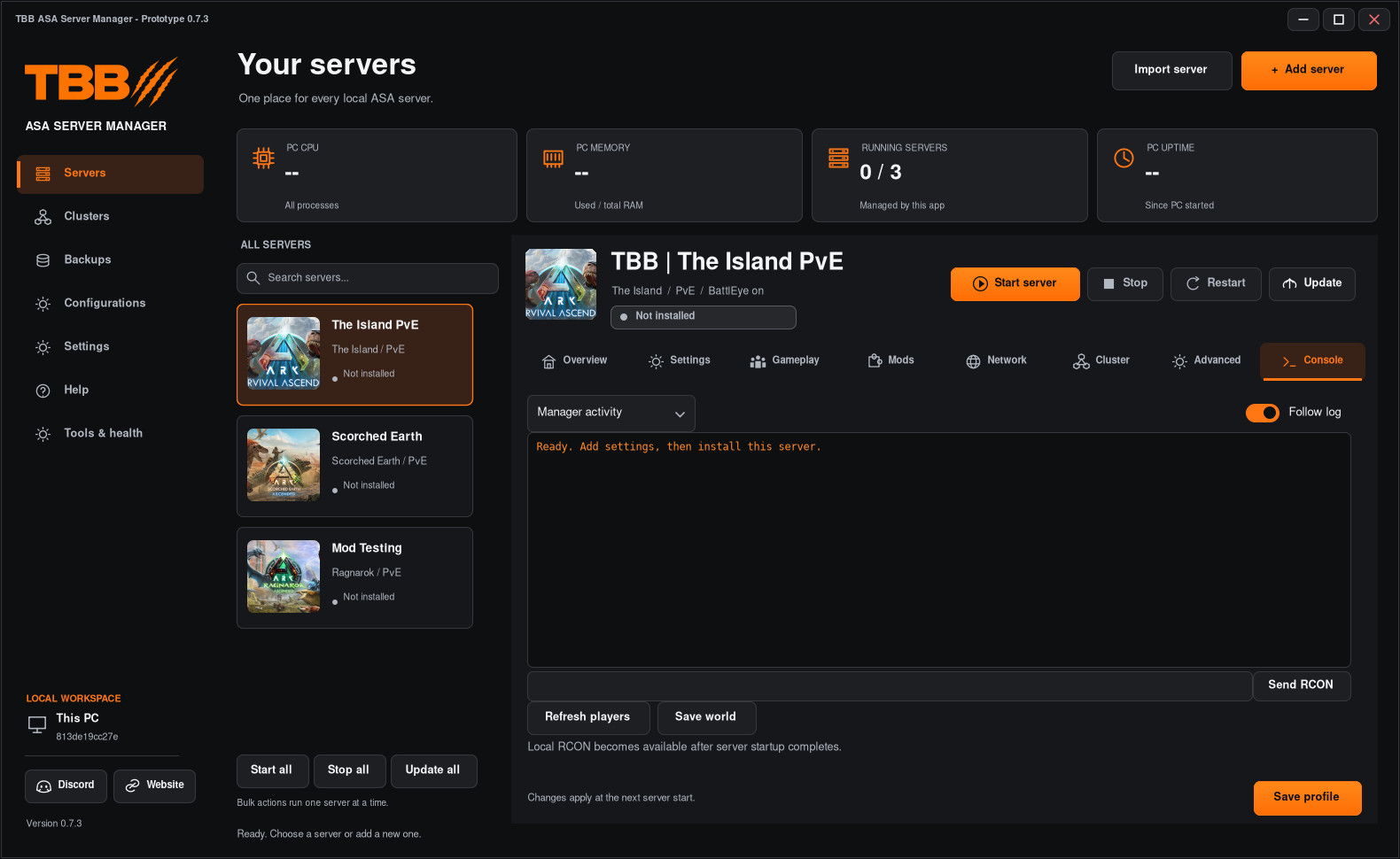
Start with the selected server’s Console and the exact error. Record your app version and what you clicked; avoid repeating a destructive operation simply because it appears slow.
1. Read the Console
- Select the affected server.
- Open Console.
- Read the newest lines and scroll back to the first relevant failure.
- Record the operation, time, map and error text.
- Remove private paths, IP addresses, passwords and tokens before sharing logs.
Step illustration
Orange text is the themed log display, not an error severity indicator. A running process and a confirmed public UDP probe are both different from a successful player login.
2. No Install server button or old controls
Check the version and executable you launched. Rebuilding a source ZIP does not replace a separate installed copy automatically. The revised uninstalled-state action row requires a new build; verify it in the launch candidate.
3. Installation fails
Check free space, an accessible dedicated installation path, internet access and the SteamCMD log output. A non-empty folder containing unrelated files can be refused. Do not delete an established installation or world as a first troubleshooting step.
4. Server starts but does not become ready
Wait for the map/mod loading phase. Look for the first error, wrong map launch name, failed mod download or port conflict. Stop normally before changing setup. Test a clean disposable server without mods if you need to isolate the cause.
5. Mods have no names or icons
Verify the numeric project ID and any -dev suffix. The metadata service can be unavailable while manual ID entry remains usable. Confirm the author’s build permissions and load order; a lookup success does not guarantee game compatibility.
6. Settings return to old values
Check whether the server uses a Saved Config, whether you clicked Save profile/Save config in the correct editor, and whether you restarted afterwards. Confirm the file and section if editing INIs directly. Close other managers that might rewrite the same installation.
7. Friends cannot join
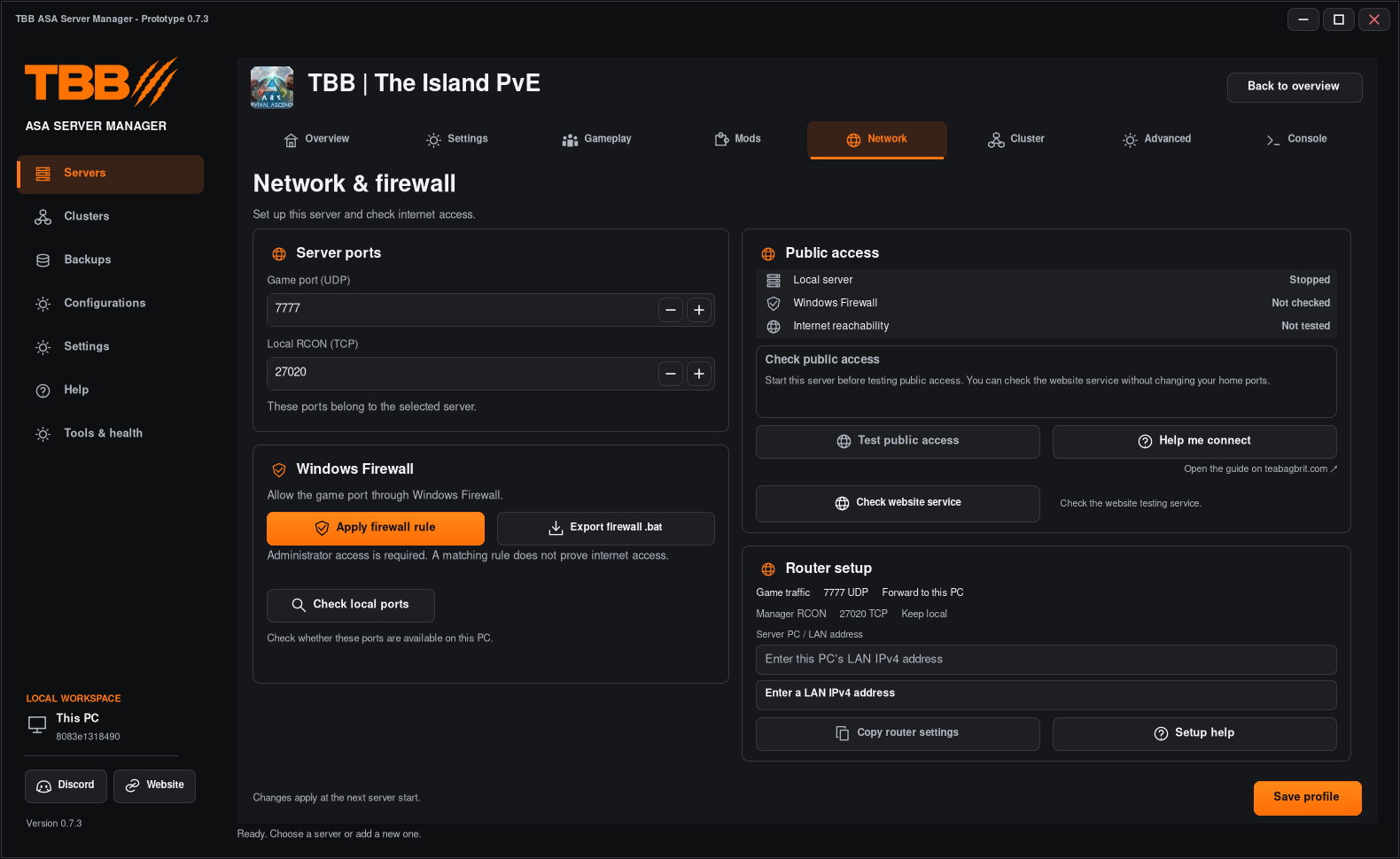
Test locally first, then use Network. Check the actual UDP game port, Windows Firewall, router forwarding and public connection. Keep “Not confirmed”, “Test unavailable” and a failed ASA login as separate results.
Step illustration
8. Schedules do not run
The manager must remain open. Check the PC’s local time, the server selected in Maintenance, whether the schedule is enabled, queued-job snooze, unsaved edits and the last result. Read the Console after a failed job.
9. What to include in a bug report
- App version and Windows version.
- Feature/tab and selected server/map.
- Numbered steps to reproduce.
- Expected result and actual result.
- Screenshot plus the relevant redacted log lines.
- Whether the test involved a new server, imported server, shared config or cluster.
Use the website’s private bug report or the TBB Discord. Do not include a whole server backup unless specifically needed and reviewed for private data.