
ASA Manager: clusters and transfer folders
Create a cluster, assign servers and understand why a transfer folder alone cannot identify every member.
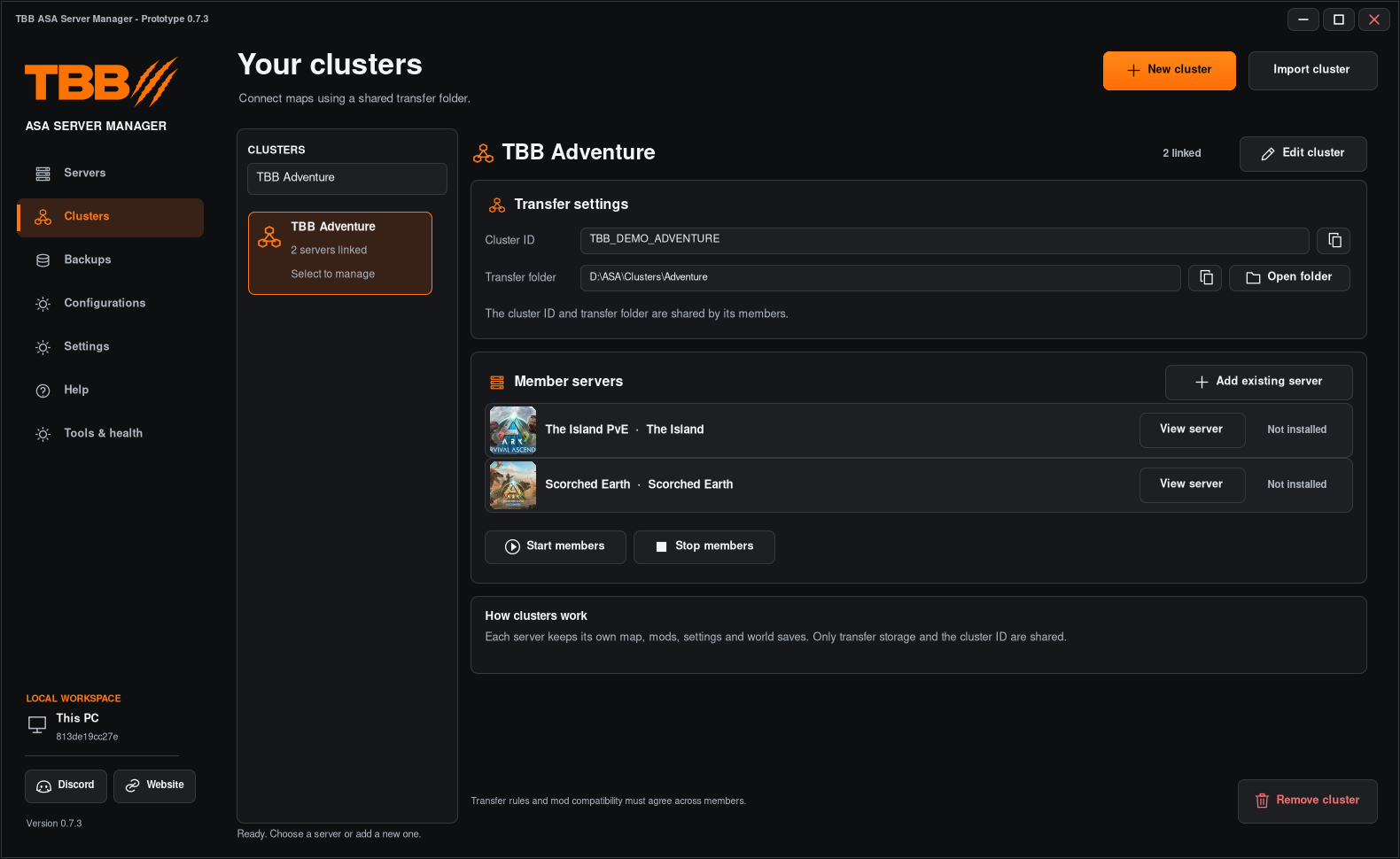
A cluster connects servers for supported ARK transfers. It is not a shared world save and it does not automatically share mods or gameplay settings. Cluster import and real cross-map transfers remain release-test items.
1. Prepare the member servers
- Install or import each server separately.
- Give every server a separate installation folder and unique ports.
- Stop the servers before changing cluster membership.
- Back up their saves and any existing transfer data.
2. Create or review the cluster
- Open Clusters in the left menu.
- Click New cluster and choose a descriptive name.
- Review its transfer ID and shared transfer folder.
- Save the cluster definition.
Step illustration
Use the exact same cluster ID and the correct shared folder for all intended members. Do not create unrelated replacement IDs for an existing cluster without first checking its original launch settings.
3. Assign servers
- Use Add existing server in the cluster view, or open a server’s Cluster tab.
- Select the intended cluster instead of Standalone.
- Check the shared ID/folder and the displayed member list.
- Click Save profile where shown.
- Start the member servers after saving.
Step illustration
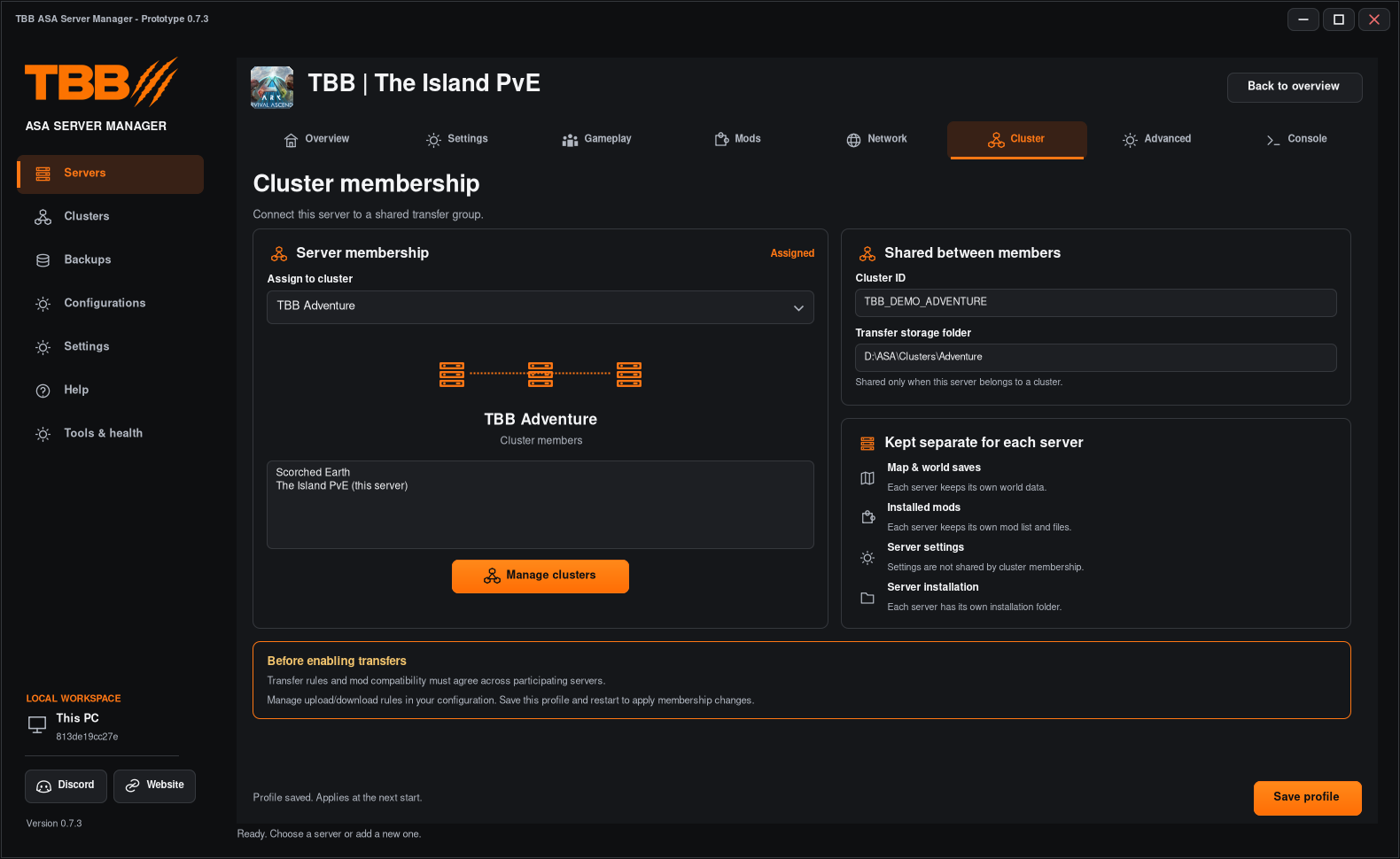
Membership and transfer options take effect at startup. Joining a cluster does not copy worlds, server settings, installation files or mod lists between members.
4. Import an existing cluster carefully
- Import each member installation first and review its launch script.
- Identify the existing -clusterid and -ClusterDirOverride values.
- Use Import cluster to review the intended existing folder and ID, rather than inventing new values.
- Match the member servers manually against their launch settings.
- If the importer cannot represent the original layout clearly, cancel and report the paths/settings for investigation before launching.
A transfer folder is not a registry of all member servers. An empty folder or one containing zero-byte files cannot supply map names, ports or server profiles. Do not require a non-empty folder as the only proof that a cluster exists.
5. Test an actual transfer
Use disposable test characters/items on test servers. Confirm the intended transfer succeeds and that return travel works. Keep this separate from merely seeing two profiles listed as members.
6. Back up the right things
Back up every server’s Saved folder and the actual shared transfer folder separately while the servers are stopped. A normal per-server backup is not a guarantee that a custom external cluster directory is included. A workspace export stores definitions, not all transfer/world files.
Remove cluster deletes the manager’s empty cluster definition after its members are unassigned; its transfer directory stays on disk.