
ASA Manager: backups, restore and maintenance
Create recovery points, restore a test world and schedule backups or daily restarts while the manager is open.
A recovery plan needs server-world backups as well as manager settings. First test restore on a disposable server, not your only copy of an established world.
1. Create a manual backup
- Select the correct server and stop it normally.
- Open Backups in the left menu.
- Choose the server in the selector.
- Click Create backup and wait for completion.
- Check the new entry’s date, size and file location.
Step illustration
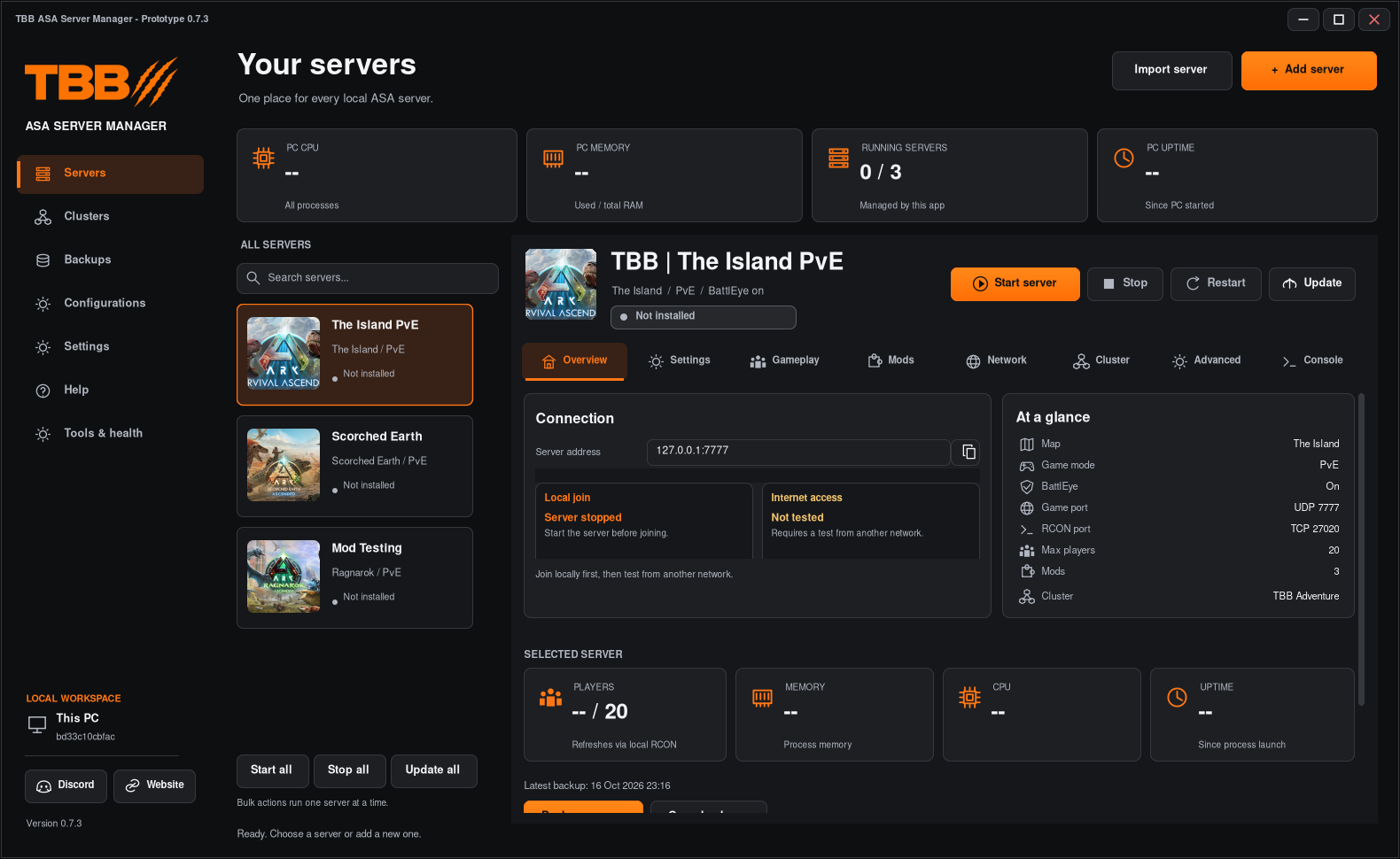
The overview helps you verify which server you are working with before opening Backups. The pictured process statistics are sample data, not backup verification.
2. Restore a snapshot
- Stop the target server.
- Open Backups and select that server.
- Select the intended snapshot by date and file name.
- Click Restore and read the confirmation.
- Confirm only when the target and snapshot are correct, then wait for completion.
- Start the server and check the expected world state.
The restore workflow first makes a copy of the current Saved folder. A backup includes the server’s Saved folder and managed profile settings. Shared cluster transfer data is separate.
3. Schedule backups or restarts
- Open Tools & health, then Maintenance.
- Choose the server in Server schedule.
- Enable Scheduled backups and set the interval in hours if wanted.
- Enable Daily restart, enter a local PC time as HH:mm and choose the player-warning time.
- If enabling Delete older backups, choose how many to keep and ensure you have another recovery copy.
- Click Save schedule and keep the manager open.
Scheduled jobs do not run while the manager is closed. A running server may be warned, stopped, backed up and restarted; plan for downtime. A failed job needs its Console/log reviewed. Unsaved edits can defer maintenance.
4. Understand retention and cancellation
Deleting older backups is an explicit choice. Test retention using disposable backups before enabling it on important worlds. Cancel queued job cancels pending work and snoozes that server’s schedule for one hour; it is not the same as deleting the schedule.
Step illustration
5. Keep a second copy
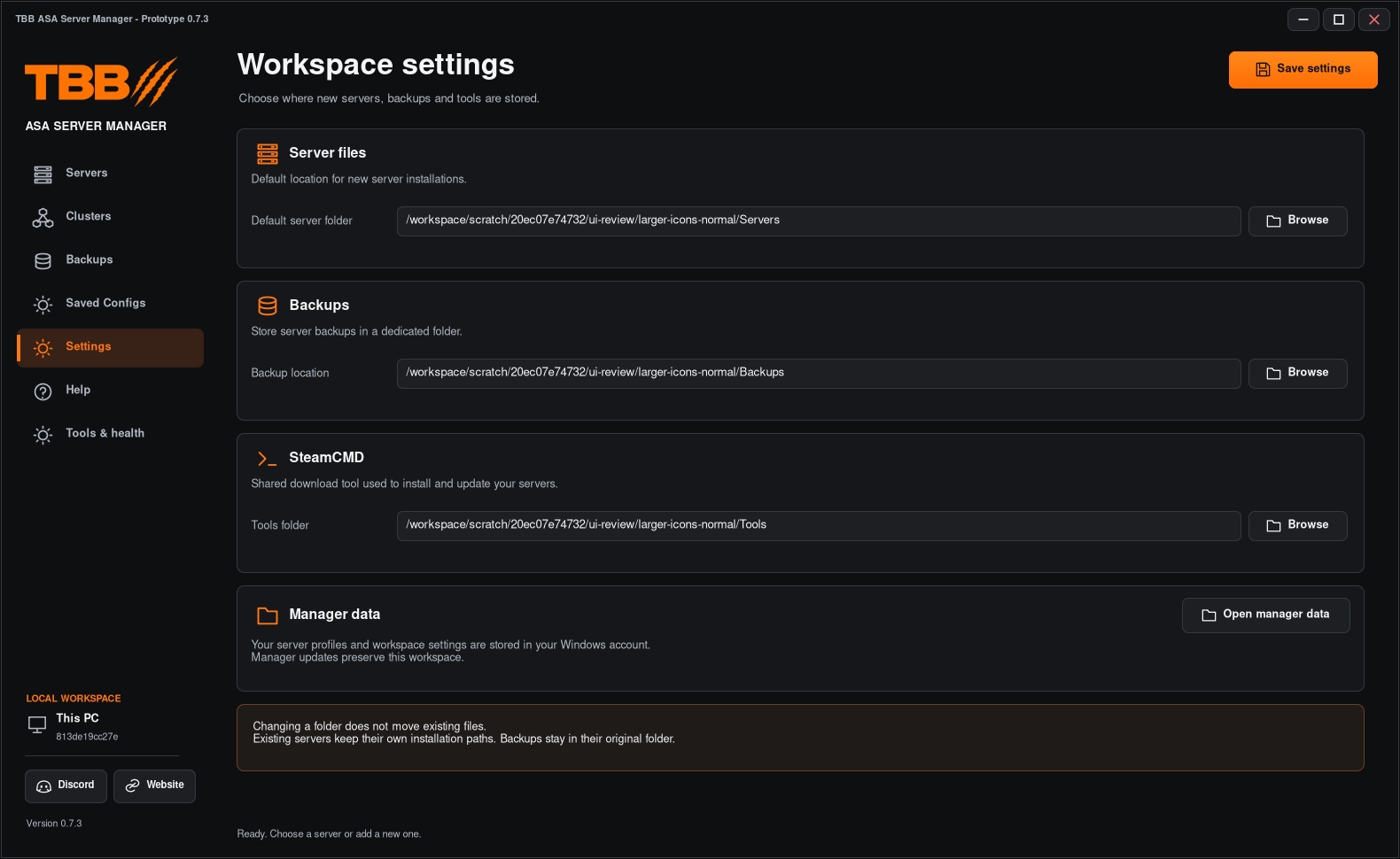
Copy important backup archives to another drive/location and verify they can be read. Remember that changing the backup location does not move old archives; point the manager back to the old location when you need to list those backups.