
ASA Manager: workspace export, updates and support
Back up the manager workspace, restore its settings, update a server and prepare a useful support report.
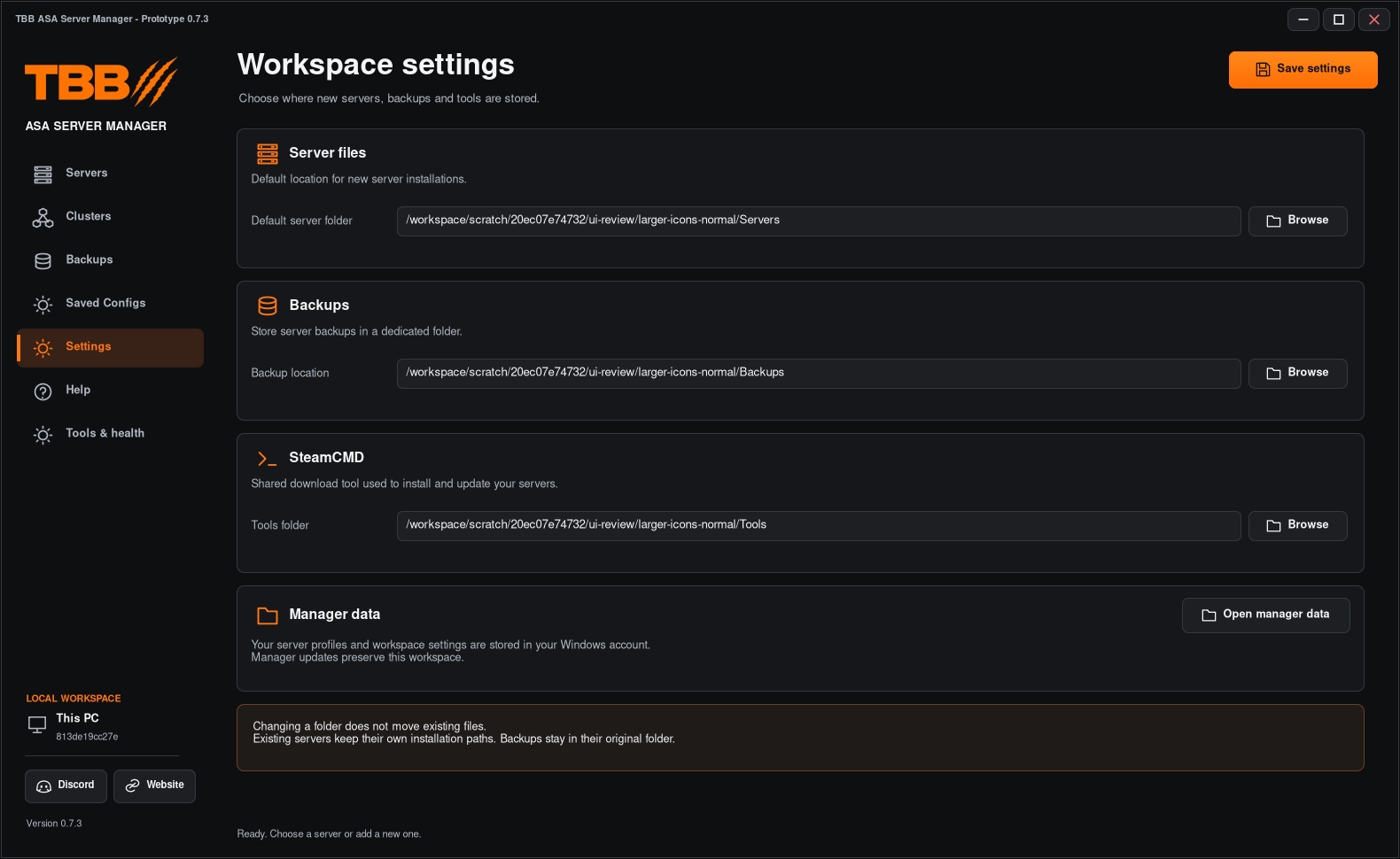
The workspace contains manager records. It is different from the large ASA installation, world saves and downloaded mods.
1. Find the manager data
- Open Settings in the left menu.
- Review the default Server files, Backups and SteamCMD folders.
- Use Open manager data to reveal this Windows account’s manager data.
- Close the manager before manually copying its complete data directory.
Step illustration
Default manager data is under %LOCALAPPDATA%\TeaBagBrit\ASAServerManager. Workspace defaults do not move existing files when changed.
2. Export the workspace
- Open Tools & health and choose Workspace.
- Click Export workspace.
- Save the ZIP in a separate recovery location.
- Keep the matching server-world backups too.
The export contains profiles, shared configurations, bundles, clusters, schedules and preferences. It does not copy all server binaries, world files or external cluster transfer data.
3. Restore the workspace
- Stop all managed servers.
- Export the current workspace before replacing it.
- Open Tools & health → Workspace → Restore workspace.
- Choose the saved export and read the review/confirmation.
- Confirm only when the replacement is intended.
- Review every restored path, profile, port and password before starting a server.
Restore replaces the manager’s settings; it does not relocate or restore server/world files. The app makes a BeforeRestore workspace export first. Restoring Windows-account-protected credentials on a different PC/account may require re-entering passwords.
4. Update the ASA server
- Select and stop the server.
- Keep a fresh world backup.
- Use Update in the installed server’s action row and review the target folder.
- Wait for SteamCMD completion.
- Start and inspect Console, including mods and map loading.
Step illustration
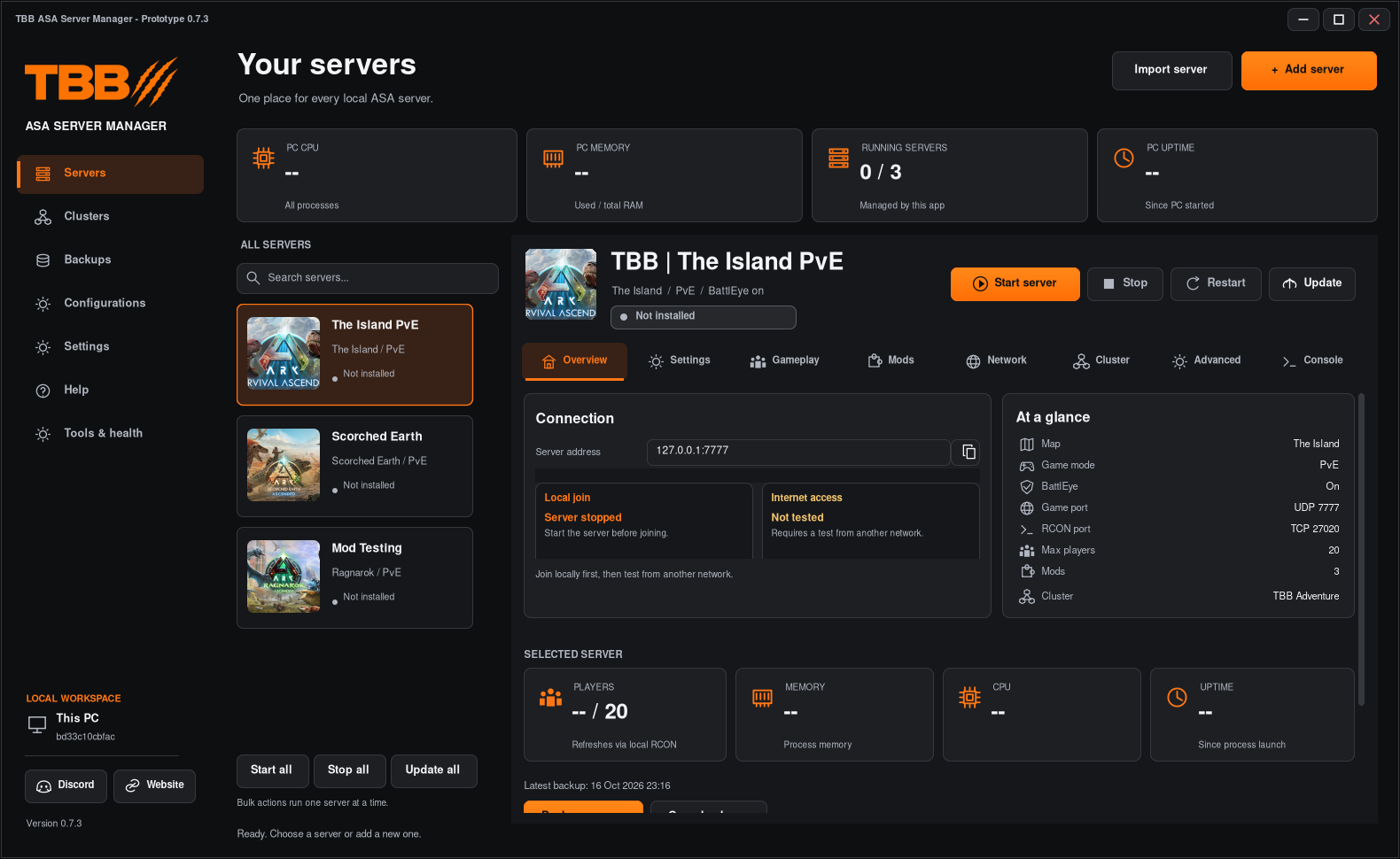
Install server appears for a missing installation in the revised build; Update is for an installed stopped server.
5. Update the manager app
Close the app before running a new official installer. Keep your exported workspace and server backups first. Check the version shown in the app against the intended release. Do not assume a source ZIP has updated an already installed executable.
6. Export a support report
Use Tools & health → Workspace → Export support report. Save it locally, inspect it and remove private information before sharing. Include the app version, Windows version, selected server/map, expected result, actual result and exact reproduction steps.