
ASA Manager: import an existing server
Locate an existing ASA installation, review detected settings and add it without moving its saves or server files.
Import adds an existing installation to the manager. It is different from installing a fresh server and different from restoring a backup. Initial import testing is still required before the first public release.
1. Prepare the source server
- Stop the server using its current launcher.
- Close that launcher or disable its automatic restart/schedule.
- Make a separate backup of the server’s Saved folder and launch script.
- Locate the installation containing ShooterGame/Binaries/Win64/ArkAscendedServer.exe.
2. Find the installation
- Open Servers and click Import server.
- Browse to the existing server installation folder, or a parent folder containing your ASA installations.
- If available, select its .bat or .cmd launch script so launch-only settings can be inspected.
- Click Find servers and select the intended installation.
- If starting from an INI file, use Choose INI and verify the installation resolved from it.
Game.ini and GameUserSettings.ini normally sit inside ShooterGame/Saved/Config/WindowsServer for this Windows server layout. An INI file alone may not contain the map, ports, mods and cluster launch arguments.
3. Review before importing
- Click Review selected server.
- Check the installation path, map, session name, ports, mods and any inspection notes.
- Correct missing details using the original launch script/configuration as your reference.
- Click Import reviewed server.
Step illustration
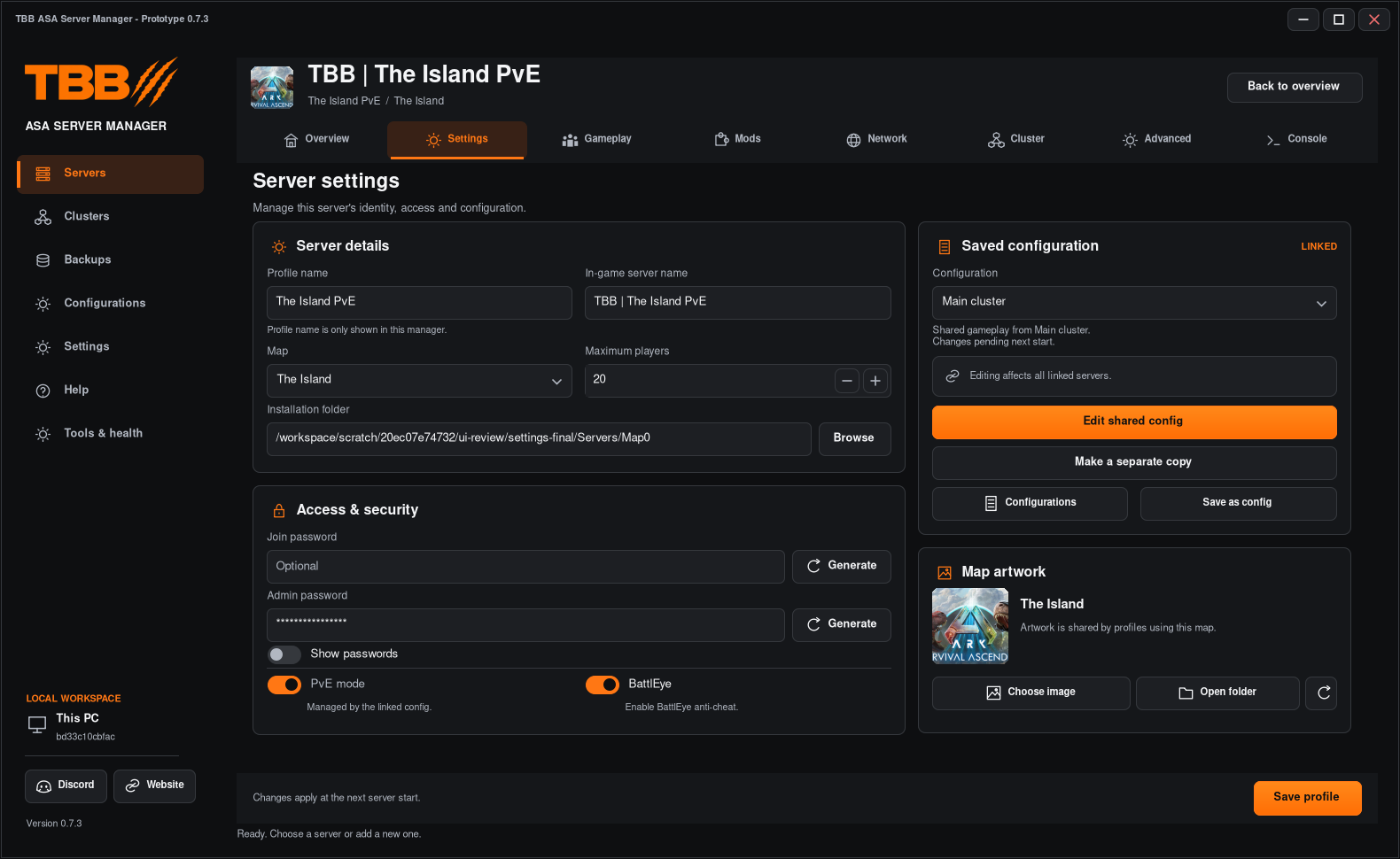
This screenshot shows the Settings page you should review after import; it is not a screenshot of the import dialog.
4. Check the result before first start
- Select the imported profile and inspect Settings, Mods, Network and Cluster.
- Confirm no second profile points at the same live installation.
- Keep the old launcher closed.
- Start through TBB and check the Console.
- Confirm the expected world and saves load, then stop normally.
Import leaves original files and saves in place. Starting or applying configuration later can write managed settings. Review first rather than assuming every other launcher stores settings in the same way.
5. If it finds nothing
Select the installation root rather than only a transfer folder or backup ZIP. Check that the ASA executable and directories actually exist on an accessible drive. Include the selected path and inspection notes in a private support report, with passwords removed.