
ASA Manager: add mods and reuse bundles
Add mods by project ID, look up names and icons, arrange load order and apply saved bundles to another server.
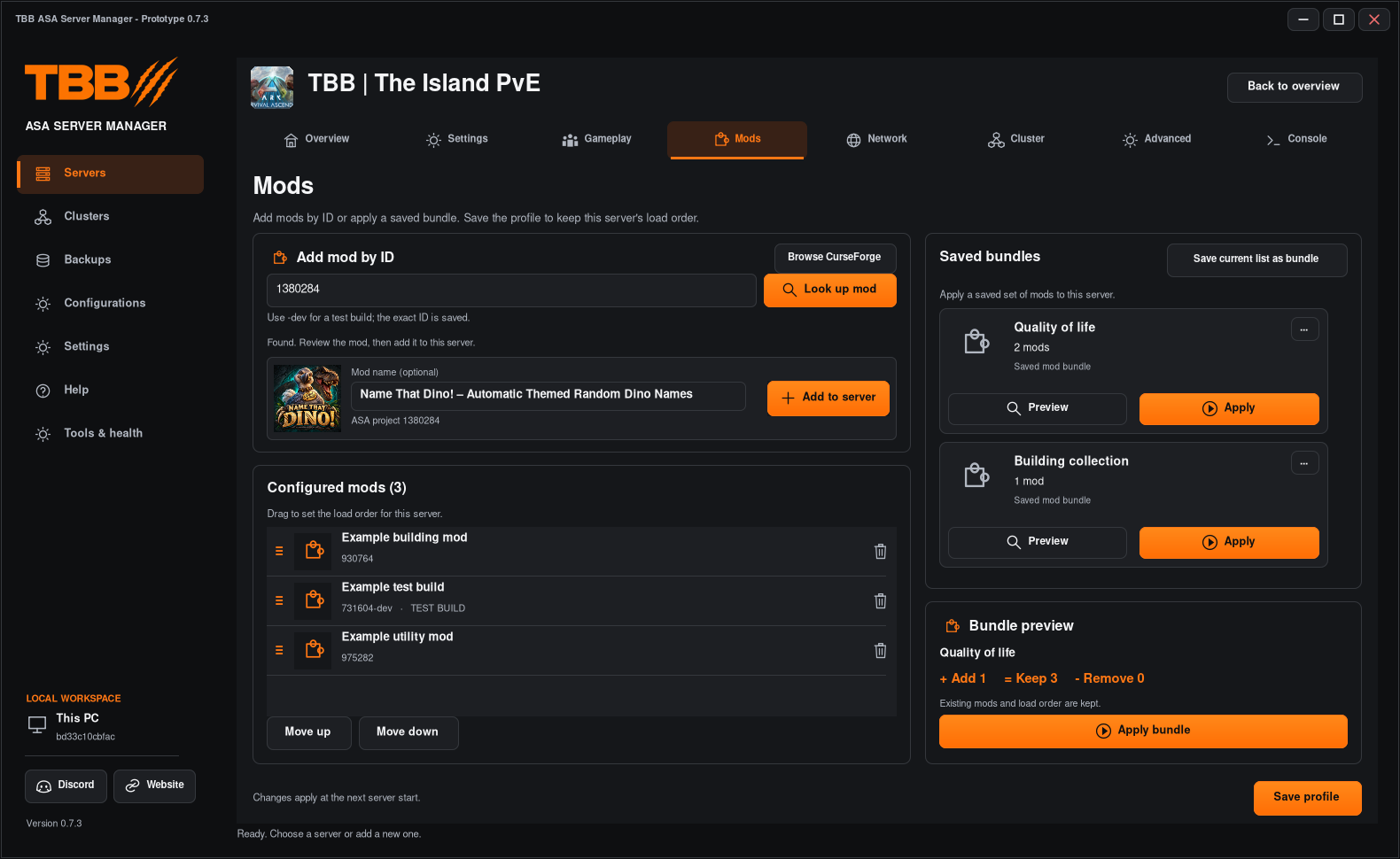
Stop the selected server before changing its mod setup. Use real ASA mod project IDs from the author’s CurseForge listing; a displayed name or icon is not proof that a mod will load successfully.
1. Add a mod by ID
- Open the selected server’s Mods tab.
- Enter the numeric CurseForge project ID.
- Use Look up to fetch the name and icon when the lookup service is available.
- Review the result, then add the mod to the server.
- Click Save profile to retain the list.
Step illustration
An ID followed by -dev is a test-build ID. Keep that suffix exactly when the author tells you to use it. Having the ID does not grant access to a restricted development build.
2. If name or artwork lookup fails
Manual ID entry remains available. Check the ID against the author’s page and add it manually if correct. A missing icon, unavailable service or failed lookup does not by itself mean the mod is invalid. In-app search by name is not promised in this build; Browse CurseForge opens the website.
3. Arrange the load order
- Drag the configured mod rows into the order recommended by the authors.
- Remove any unwanted entry from the selected server’s list.
- Click Save profile.
- Start the server and inspect its Console for mod-loading failures.
Removing an entry from the configured list is not the same as deleting every downloaded mod file.
4. Save and reuse a bundle
- Arrange and save a known working mod list.
- Use the saved-bundle controls on the right to save it with a descriptive name.
- Select a target server and open Mods.
- Select the bundle and review its preview before applying.
- Apply it, inspect the resulting list/order and click Save profile.
Bundle application merges entries into the existing list; review the result rather than assuming it replaces every entry. Exact IDs, including -dev, must remain unchanged.
5. Test before adding more
Start with one known working mod and confirm it loads. Add the rest in small groups so a failure is easier to identify. Back up an established world before changing a mod list that affects saved items or creatures.