
ASA Manager: remove a server without surprises
Choose whether to remove only the manager entry, delete the installation while keeping backups, or remove everything.
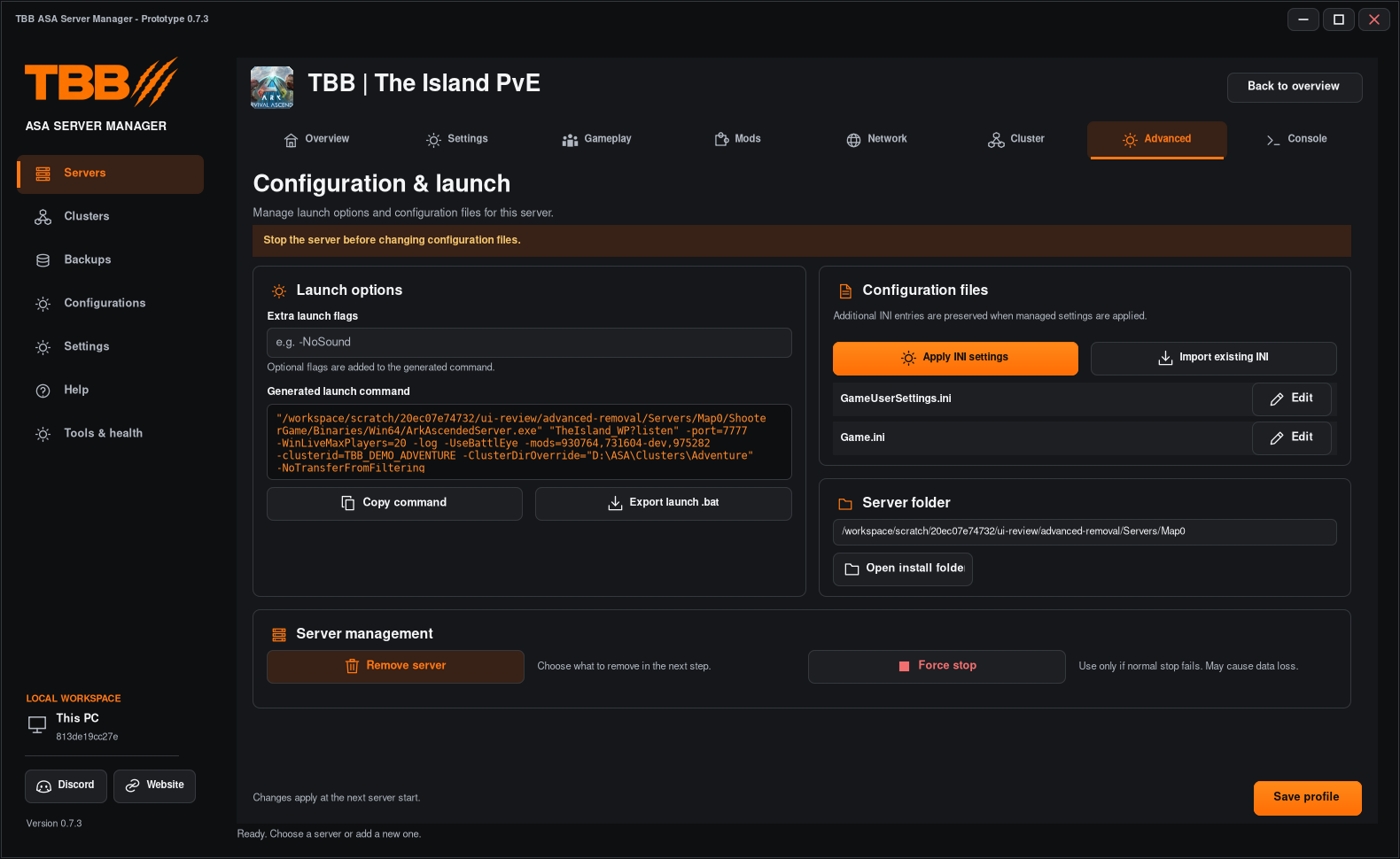
Use this guide to understand the removal choices. Test destructive options only with disposable installations until the release candidate passes the removal checks.
1. Stop and check the selected server
- Select the exact server to remove.
- Use normal Stop and wait for completion.
- Back up any world or transfer data you need to retain.
- Open Advanced and click Remove server.
Step illustration
2. Choose what to remove
Remove from TBB only removes the manager entry while leaving installation files and backups on disk.
Remove from TBB and delete server files but keep backups removes the selected installation and keeps that server’s backups.
Remove and delete all removes the selected installation and that server’s own backups as well as the manager entry.
Step illustration
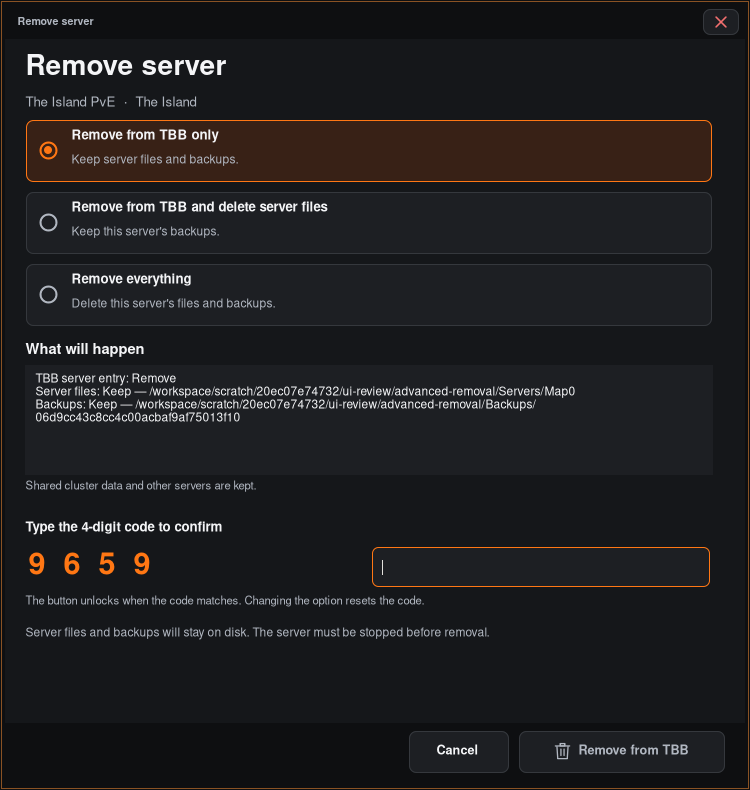
Always read the exact paths shown in your dialog. Shared cluster transfer data needs its own review and backup; it is not safe to treat a cluster folder as disposable just because one member is being removed.
3. Confirm the four-digit code
- Select the intended removal option.
- Read its effects and paths again.
- Copy the displayed four digits exactly into the confirmation box, including any leading zero.
- Click the enabled final removal button only when ready.
Changing the option resets confirmation and generates a new code. Cancel closes the dialog without carrying out removal.
4. If deletion is refused or fails
The manager rejects running or unsafe/shared paths. Do not bypass that refusal by changing a path to a wider parent folder. Check the error and collect a support report.
If filesystem deletion fails part way through, some files may already have been deleted even though the manager entry remains. Do not assume it is a complete rollback. Inspect the paths and restore from your recovery copy if needed.