
ASA Manager: save, assign and restore configurations
Create reusable Saved Configs, assign them to several servers, export INIs and restore previous configuration versions.
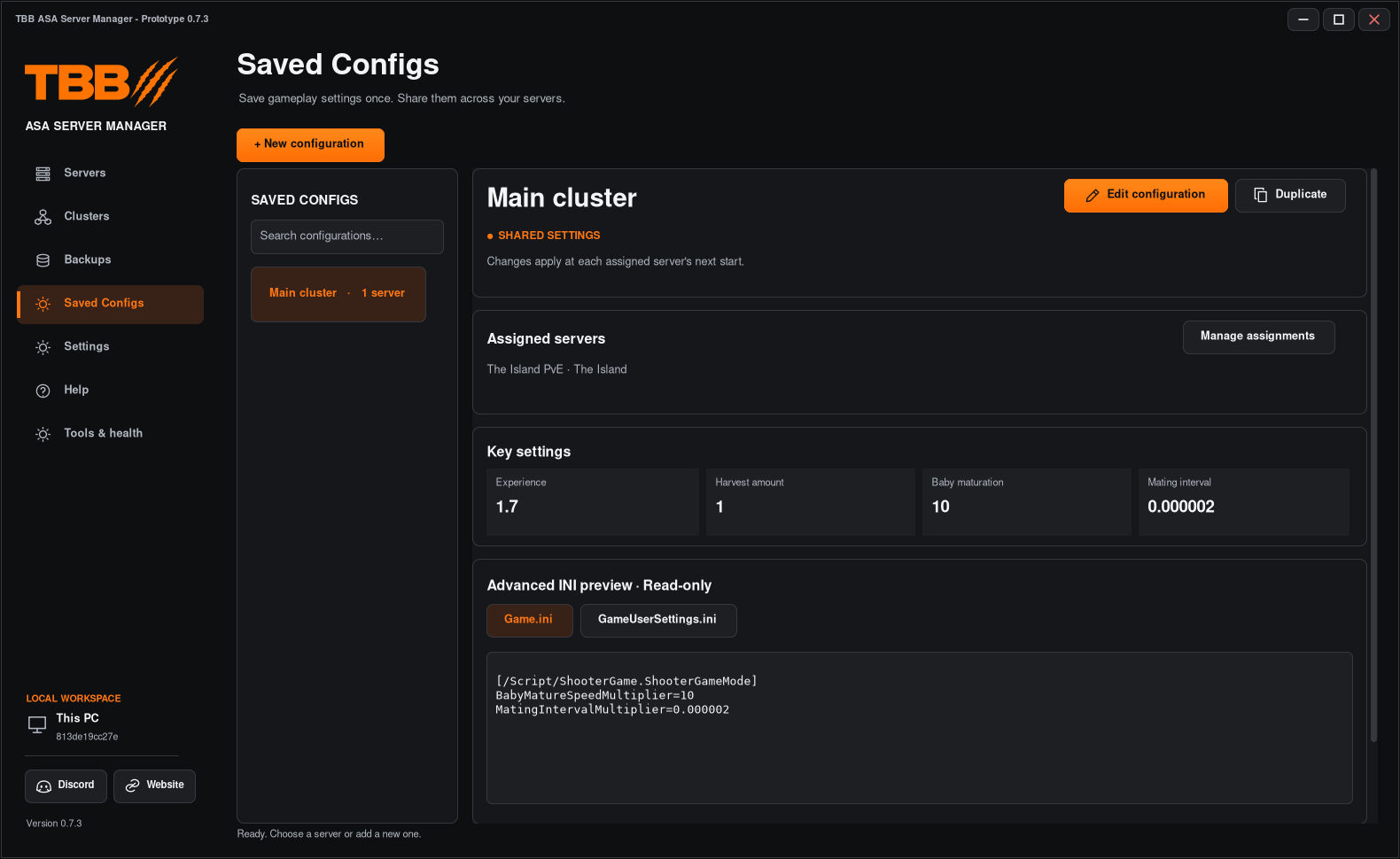
Saved Configs are reusable gameplay and INI settings. They are separate from server-world backups and mod bundles. Earlier screenshots may use the older menu name Configurations.
1. Create a named configuration
- Open Saved Configs in the left menu.
- Click New configuration.
- Enter a descriptive name such as Boosted PvE.
- Edit the intended Game.ini and GameUserSettings.ini settings.
- Click Save config and review the changes before confirming.
Step illustration
The page’s INI panel is a read-only preview. Use Edit configuration to open the editor. Saving in the editor is distinct from saving an individual server profile.
2. Capture settings from a server
- Select the source server and review its current effective settings.
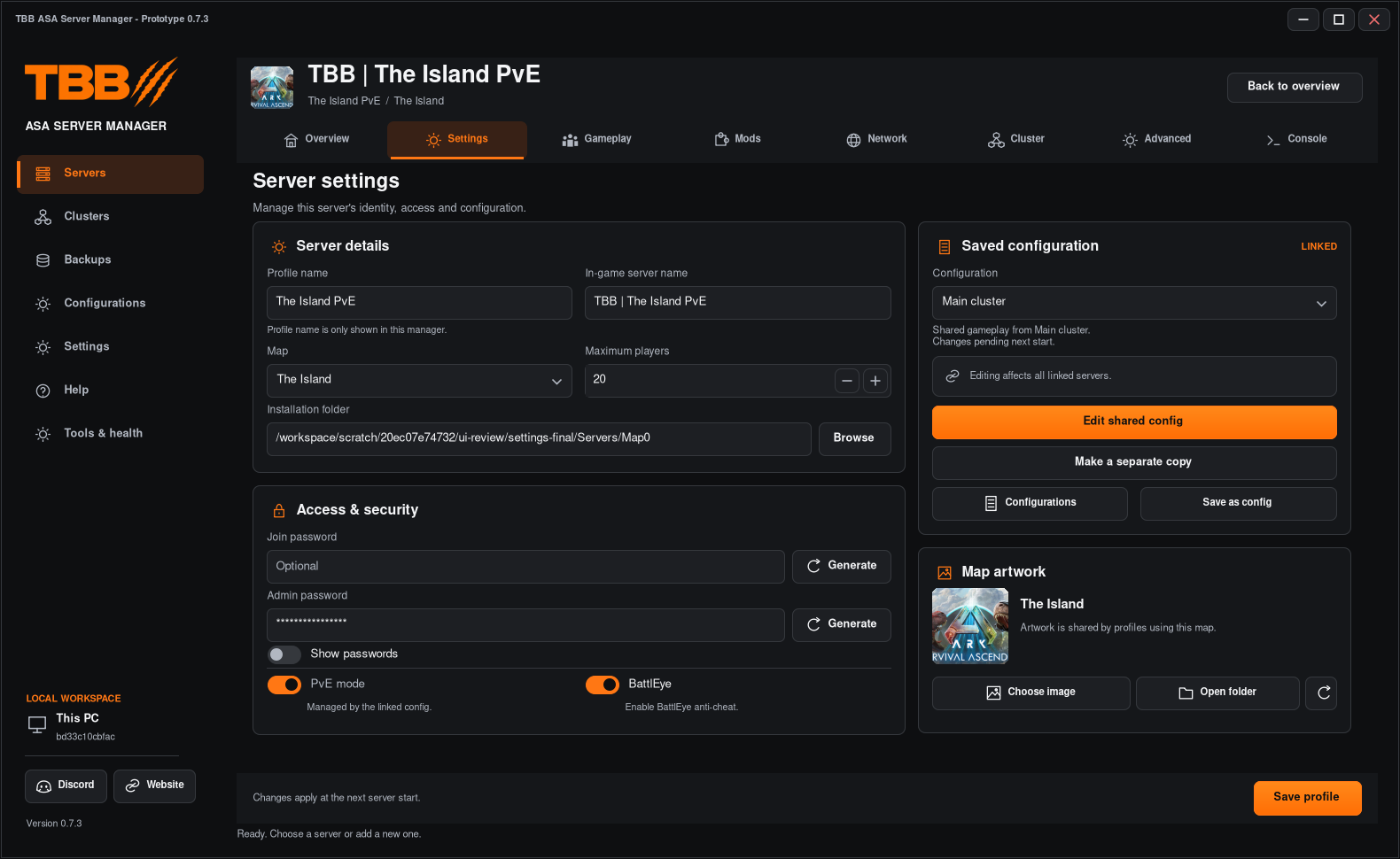
- Use Save as config from the server’s saved-configuration controls.
- Give the captured configuration a unique name.
- Review and save it, then reopen it from Saved Configs.
Capturing a configuration does not automatically mean every server is assigned to it. Confirm the assignments explicitly.
3. Assign it to servers
- Select the configuration and click Manage assignments.
- Tick the servers that should share it.
- Check the list before clicking Save assignments.
- Start/restart the affected servers when ready for the new settings to take effect.
Shared configuration changes apply at each assigned server’s next start, not immediately to a live game. Maps, server names, passwords, ports, cluster identity and mod IDs stay server-specific.
Step illustration
4. Edit and duplicate safely
- Select a Saved Config and click Edit configuration.
- Change the intended values only.
- Save config and review the affected server names.
- Use Duplicate when you want to make a new variation rather than change the original shared settings.
A change to a shared config affects every linked server. Check assignments before saving a production-wide adjustment.
5. Import or export INI files
In the editor, Import Game.ini and Import user settings load INI text into the configuration for review. Save config stores the reviewed result. Export INIs writes a copy of the current draft to your chosen destination; it does not itself assign that draft to a server.
Reserved server-specific credentials and launch identity are not intended to be distributed through shared configs. Always inspect exported files before sharing.
6. Restore a previous version
- Open Edit configuration, then Previous versions.
- Choose the intended revision from the saved history.
- Click Load into editor.
- Review the loaded values.
- Click Save config to commit the restoration for linked servers.
Loading into the editor alone is not a completed restoration. History keeps the last 20 saved configurations; keep exports for longer-term archives.
7. Unlink or delete
Unchecking a server in Manage assignments returns it to its own settings. To retain the current effective shared values as independent settings, use Make a separate copy from that server’s shared-config controls and review/save it.
A linked configuration cannot be deleted until its servers are unassigned. Delete config removes that saved settings record, not the server installations or world saves.