
ASA Manager: server settings and gameplay
Set the map, session name, access options and gameplay rates, including very small decimal values.
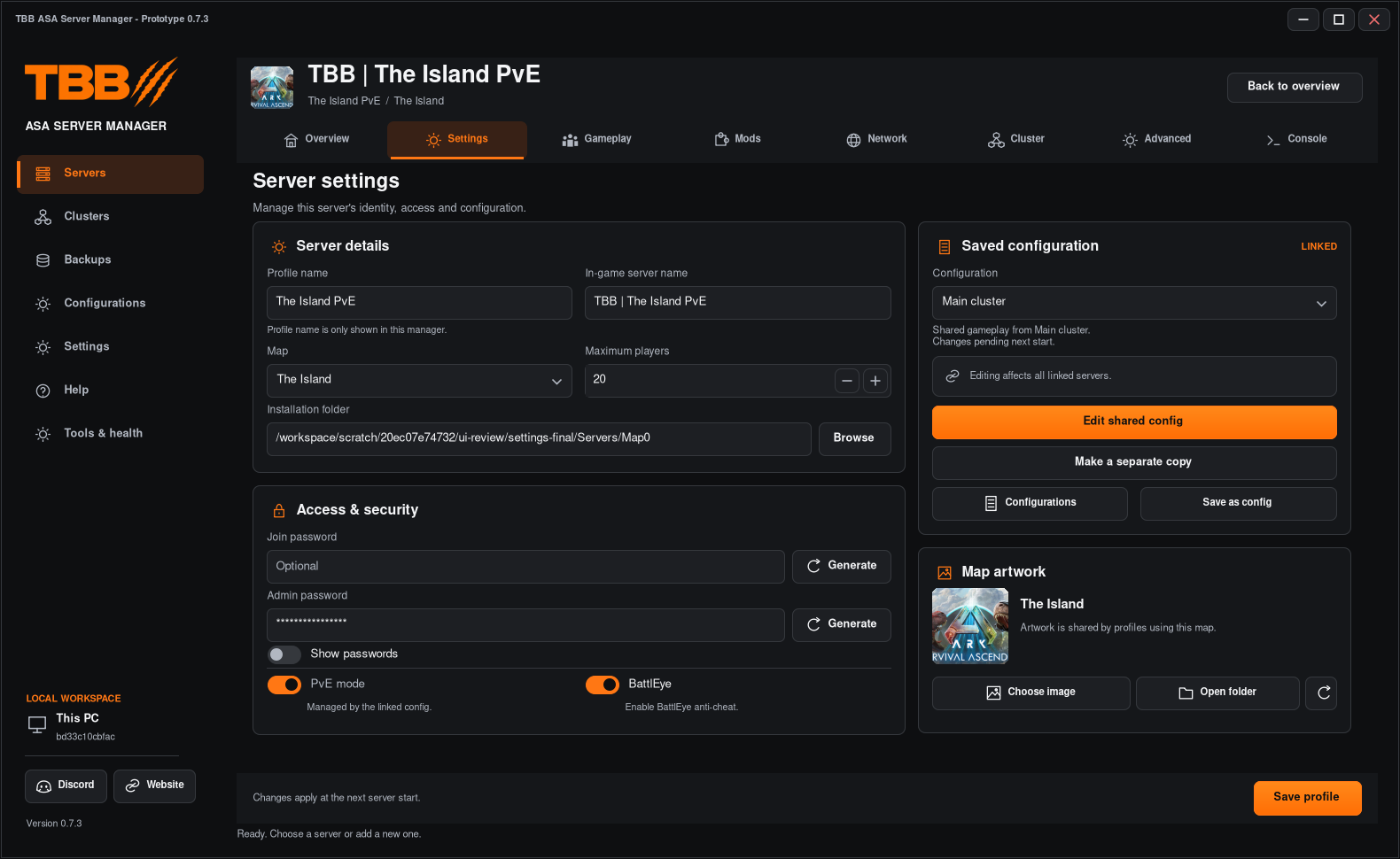
Use Settings inside the selected server for that server’s setup. The Settings item in the left menu is for the whole manager’s default folders.
1. Select and stop the right server
- Open Servers and select the server card on the left.
- Check its name and map before making changes.
- If running, use Stop and wait for the stopped state.
Step illustration
2. Set identity, map and access
- Open the server’s Settings tab.
- Set the session name and installation folder carefully. Changing the path does not copy an installation.
- Choose the map, PvE/PvP, player limit, BattlEye and passwords as appropriate.
- For a modded map, use the author’s exact launch level name and numeric CurseForge project ID. Use loading by mod ID only if the map author requires it.
- Click Save profile.
Use unique ports and separate installation folders for separate server profiles. Review the Network tab when adding a second server.
3. Change gameplay rates
- Open Gameplay.
- Choose a category, or search using the friendly name or INI key.
- Enter the exact value. For example, 5.85 or 0.000002 should remain exact; there is no need to round to one decimal.
- Click Save profile, review the changes and start the server to apply its managed settings.
Step illustration
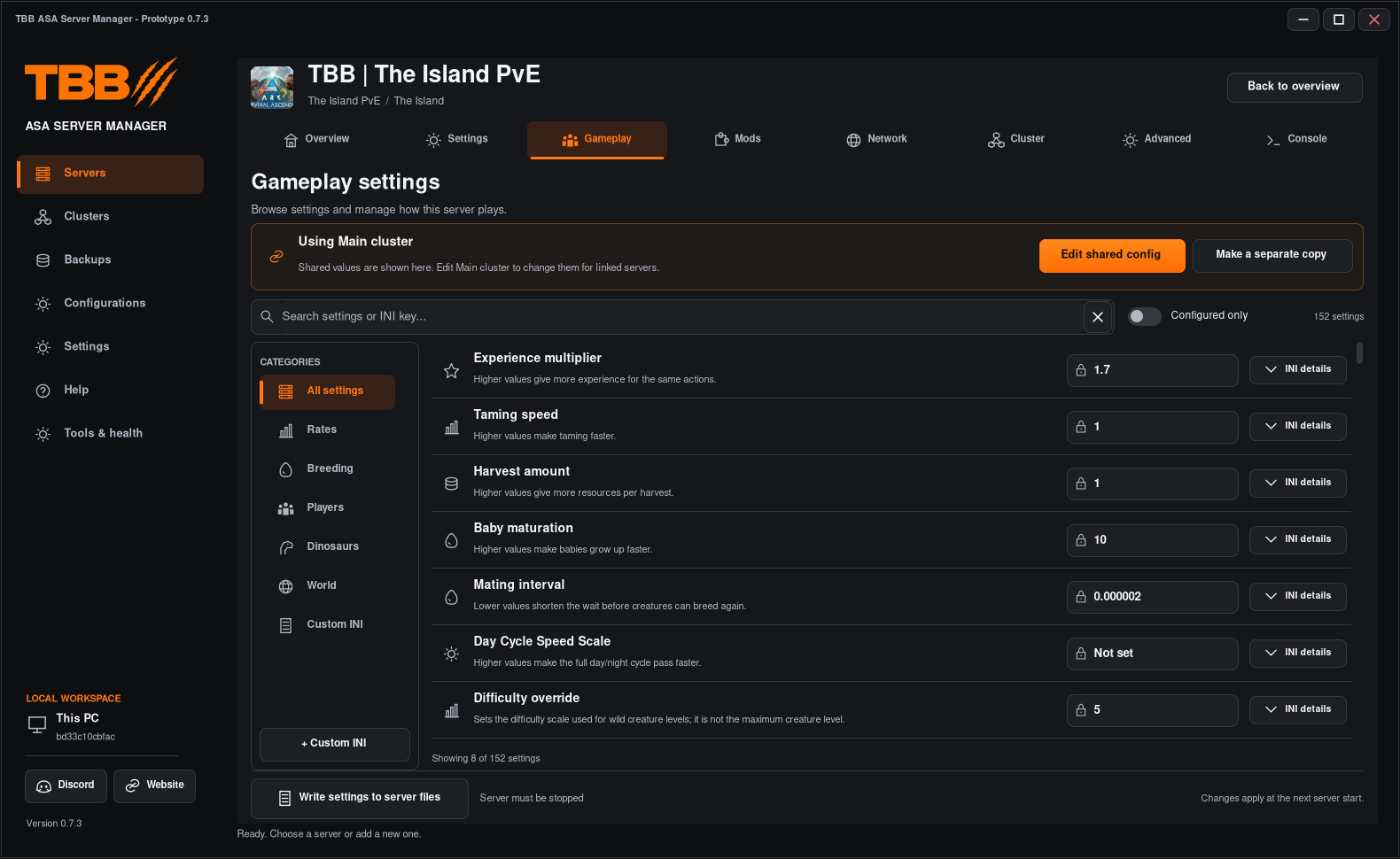
Different settings interpret larger and smaller values differently. Mating interval and maturation speed, for example, are not interchangeable. Check the setting description rather than assuming that a bigger number is always faster.
4. Understand optional entries
An unset option is different from explicitly setting a numeric value. Use the available keep-existing/default behaviour deliberately. Open a setting’s INI details if you need to see which file, section and key it controls.
5. If settings are locked
A server linked to a Saved Config uses shared gameplay settings. Search and read them here; use Edit shared config to change the shared values. Use Make a separate copy to return this server to independent settings without deliberately changing the other linked servers. Save and restart as needed.
Create and assign Saved Configs
Check your result
Reopen the profile to confirm the saved value, then check the expected in-game effect after startup. If a value resets, check for a linked Saved Config, the wrong INI section or changes made by another running server manager.