
ASA Manager: advanced INI and launch configuration
Review generated commands, apply managed INI settings, import existing values and export a launch script.
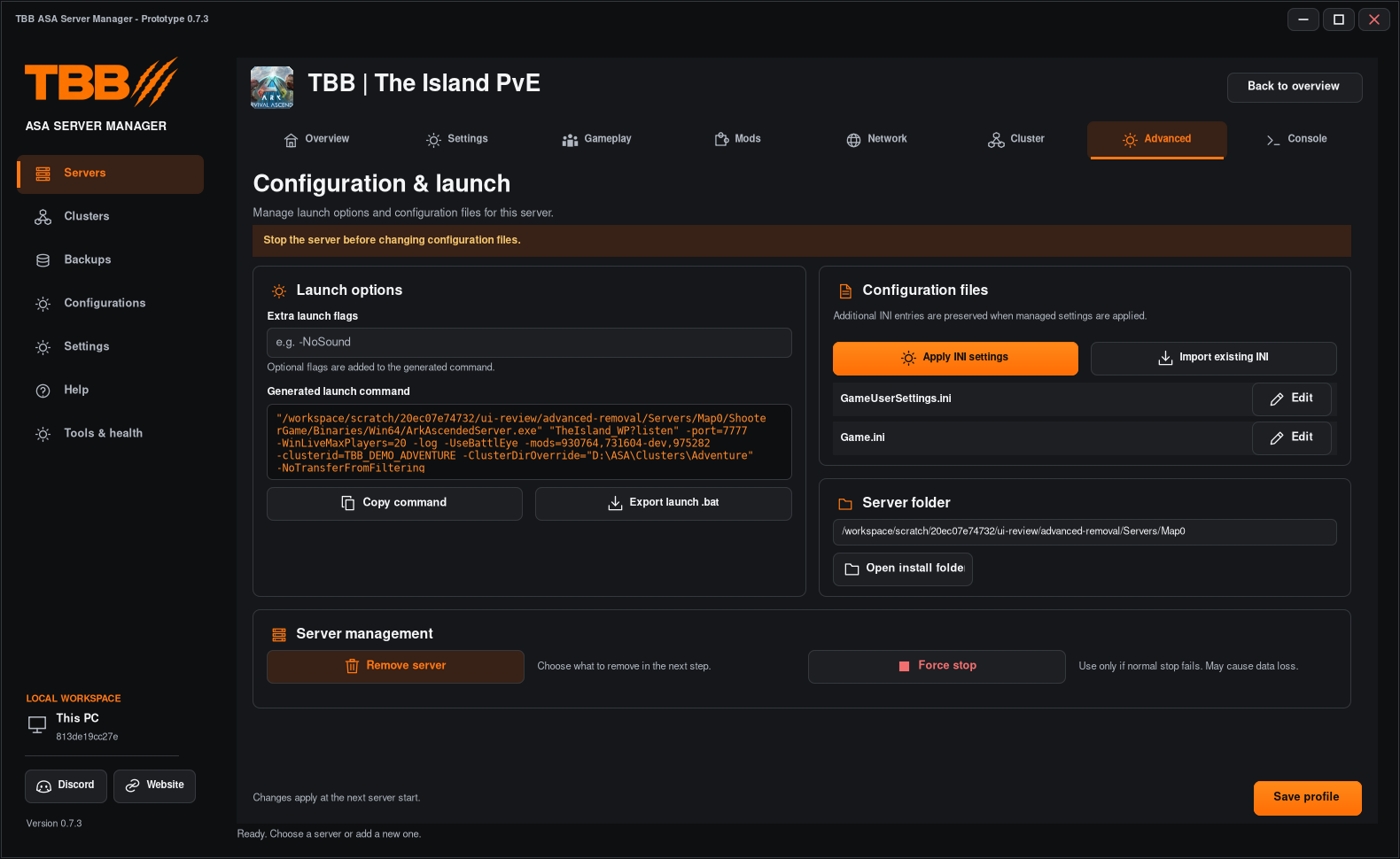
Use Advanced after the basic server setup works. Stop the selected server and back up its Saved folder before editing files. Avoid simultaneous edits in another manager.
1. Review the generated command
- Select the server and open Advanced.
- Read the generated launch command and check the executable, map, ports, mod IDs and cluster arguments.
- Enter only supported optional values in Extra launch flags, such as -NoSound when appropriate.
- Click Save profile.
Step illustration
Do not duplicate managed map, port, password, mod or cluster arguments in Extra launch flags. The app validates reserved options. A command preview is not proof of a successful startup.
2. Copy or export a launch command
Use Copy command to copy the displayed command, or Export launch .bat to write a script. Inspect the script before running it. Do not launch the same installation simultaneously from both the manager and an external script.
Treat command/script contents as potentially sensitive: remove private paths, credentials and connection details before posting them publicly.
3. Apply managed INI settings
- Confirm you selected the correct stopped server.
- Save the intended profile changes.
- Use Apply INI settings.
- Wait for the operation to complete and inspect the files if needed.
- Start the server and verify the expected game behaviour.
GameUserSettings.ini and Game.ini are separate files with different sections. Additional INI entries are intended to be preserved when managed settings are applied, but you should keep a recoverable backup before advanced edits.
4. Import existing settings
Use Import existing INI to review settings from the installation. If the server is linked to a Saved Config, edit that shared configuration or unlink/make an independent copy first. Importing local values into a shared server is blocked to avoid an unclear source of settings.
5. Edit an individual INI
Use Edit beside the specific Game.ini or GameUserSettings.ini row. Check the exact section and key, save through the editor and read any review/confirmation. A managed setting may be written again from the saved profile or shared configuration on the next start.
Shared settings and version history
6. Server management actions
Open install folder reveals the selected installation. Remove server opens a separate choice-and-code dialog. Force stop is a last resort when normal Stop fails and can lose unsaved progress.