
TBB Backup: restore files, notes and pinned versions
Browse versions, recover selected files safely, and label important milestones with patch versions and notes.
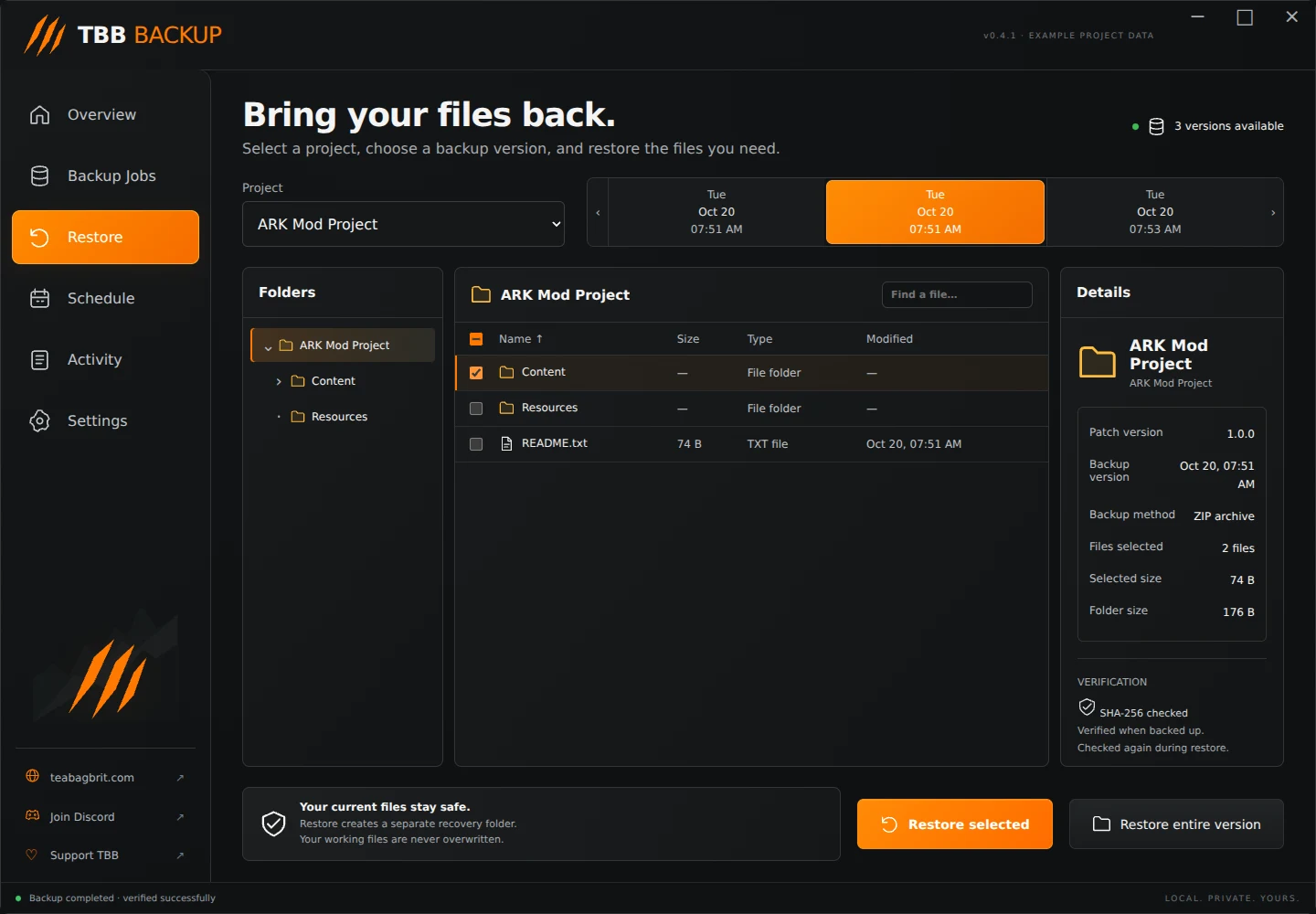
Restore always creates a separate recovery folder. It does not overwrite your working project. Screenshots show example projects in the actual app interface.
1. Choose a project and version 1. Select Restore in the sidebar. 2. Choose the project from the Project dropdown. 3. Choose a date and time on the version timeline. Use its arrows to reach more versions. 4. Check the Details panel for the patch version, backup time and storage method.
Step illustration
Two backups made in the same minute can have the same displayed minute. They are still separate versions. If only one version appears, check the job's Keep ordinary versions setting and Activity for failed runs.
2. Find what you need Click folders in the tree or double-click a folder in the file table. Use the search field to find filenames or paths within the current folder.
Tick a file to select it. Ticking a folder selects its contents, including its subfolders. The Details panel shows the selected file count and size. Use the table header checkbox to select the displayed items.
3. Restore selected files 1. Click Restore selected, or choose Restore entire version for everything. 2. Review the file count and continue. 3. Choose an existing recovery destination. Keep it outside your original source folder and outside the backup repository. 4. Wait for the verified restore to complete. 5. Use Open recovered files to inspect the new TBB-Restore folder.
Open and check the recovered files before deciding whether to replace anything in your working project manually. A failed verification is a failure to investigate, not a completed recovery.
4. Add patch versions and notes Before a manual backup, the app offers an optional version label such as 1.2.0 and multiline notes. Write what changed, what worked or why you are making this milestone. Leave them empty if you do not need them.
Step illustration
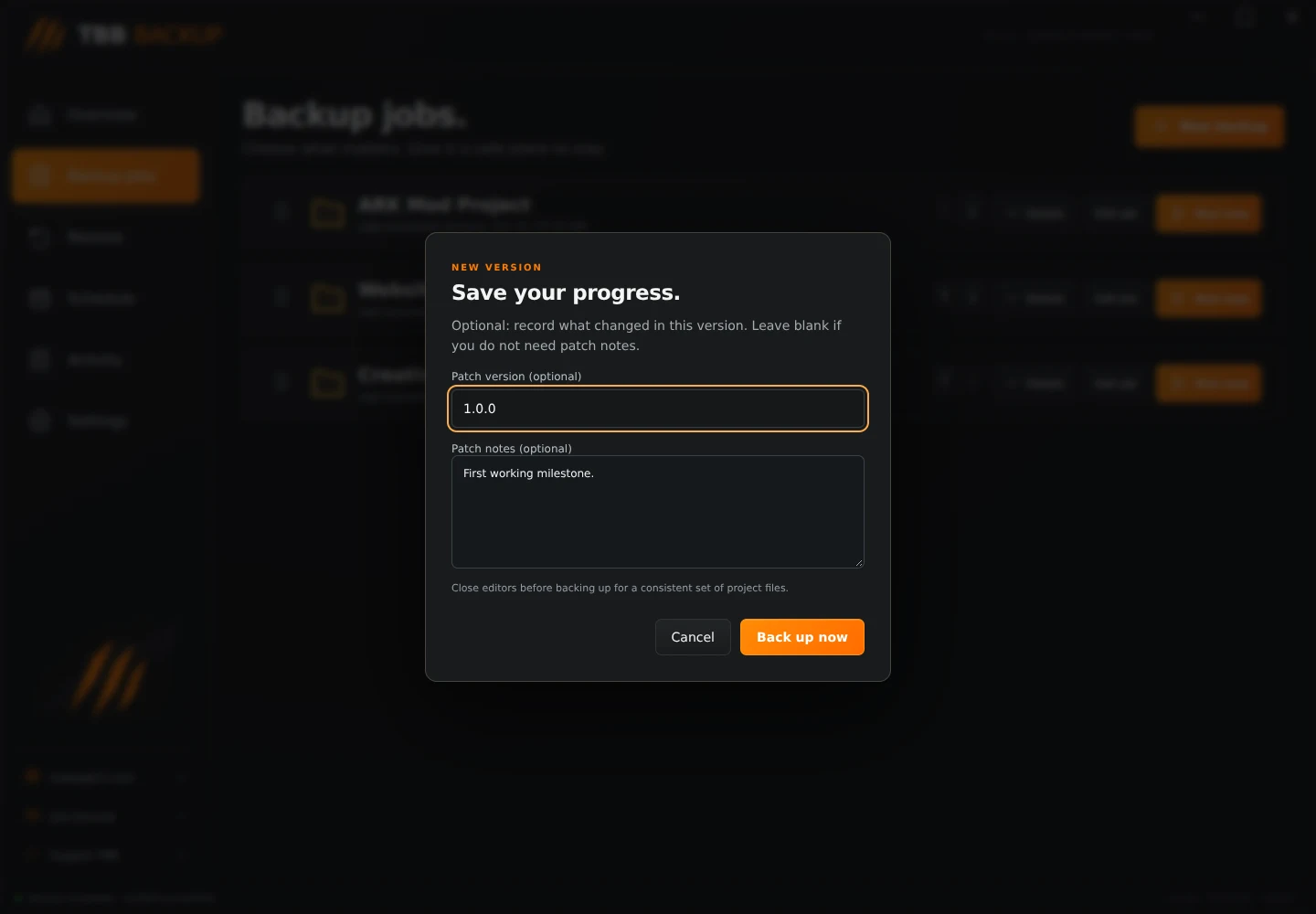
Set default version and note text in Edit job if useful. Review the defaults before each manual run; version labels do not automatically increment.
To change a saved version's text, select it in Restore, scroll down in Details and choose Add patch notes or Edit patch notes. Save your changes. This edits the version metadata, not its backed-up file contents.