
TBB Backup: install and make your first backup
Install TBB Backup on Windows, choose folders, create a job and verify your first recovery.
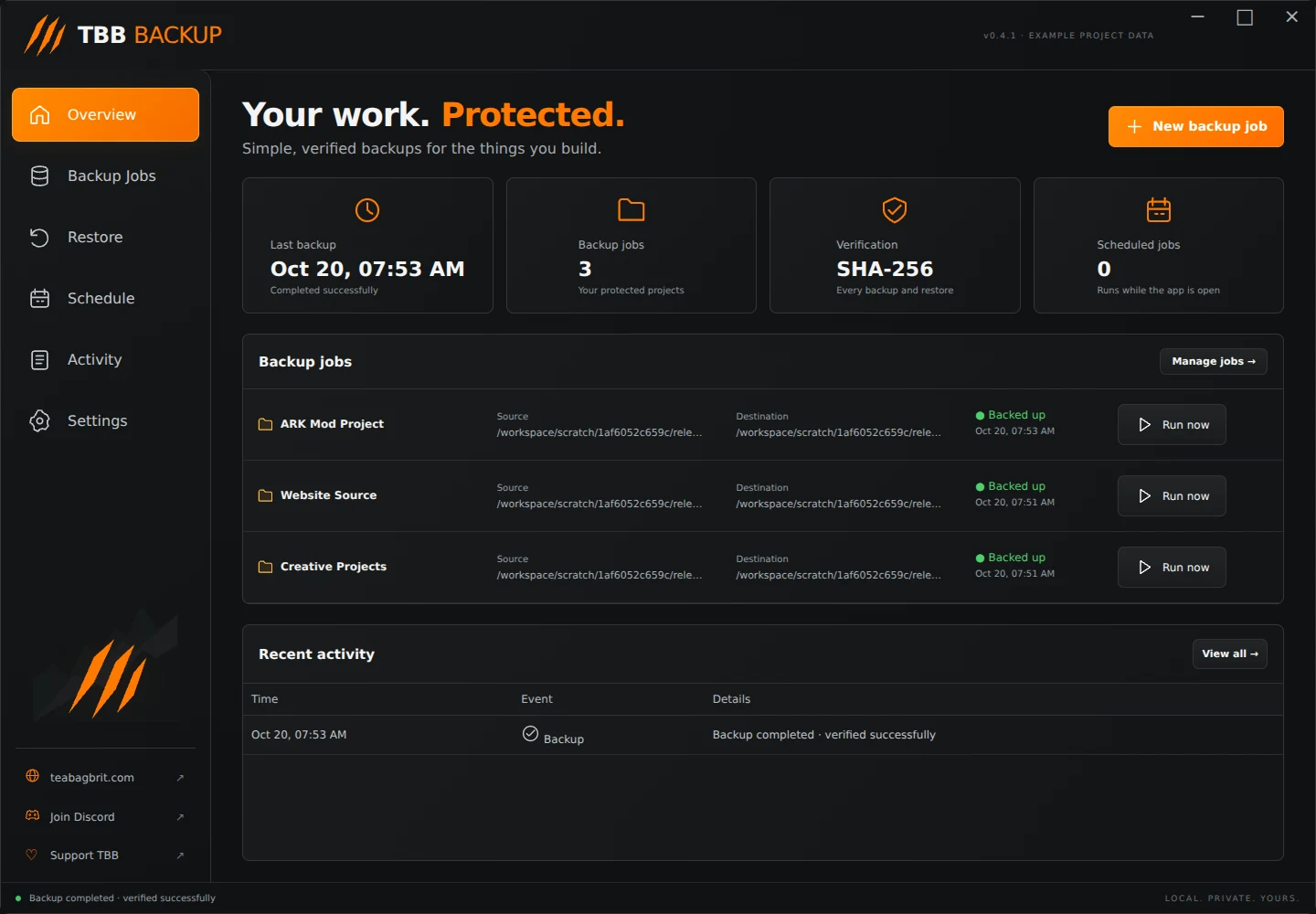
These steps match TBB Backup 0.4.1. Screenshots show the actual interface with example projects; the capture environment uses different folder paths from Windows.
1. Install TBB Backup 1. Download the Windows setup from the [TBB Backup app page](/apps/tbb-backup). 2. Close any older TBB Backup window, run Setup and follow the branded installer. 3. Keep an internet connection available on first installation. This small web installer downloads a verified private Python runtime from python.org automatically. You do not need to install Python or extract files yourself. 4. Open the TBB Backup desktop shortcut. Windows 10/11 64-bit and Microsoft Edge WebView2 Runtime are required. The launcher also uses the Windows .NET Framework. 5. If a setup or startup error appears, keep the exact message and ask for help through the Discord link.
Step illustration
2. Prepare a small test folder Start with a folder containing a few disposable test files. Choose a backup destination on a different physical drive where possible. A second folder on the same drive does not protect you against that drive failing.
Save and close your project editor before making a project backup. TBB Backup copies files; it does not move your source project. It does not capture a live system snapshot.
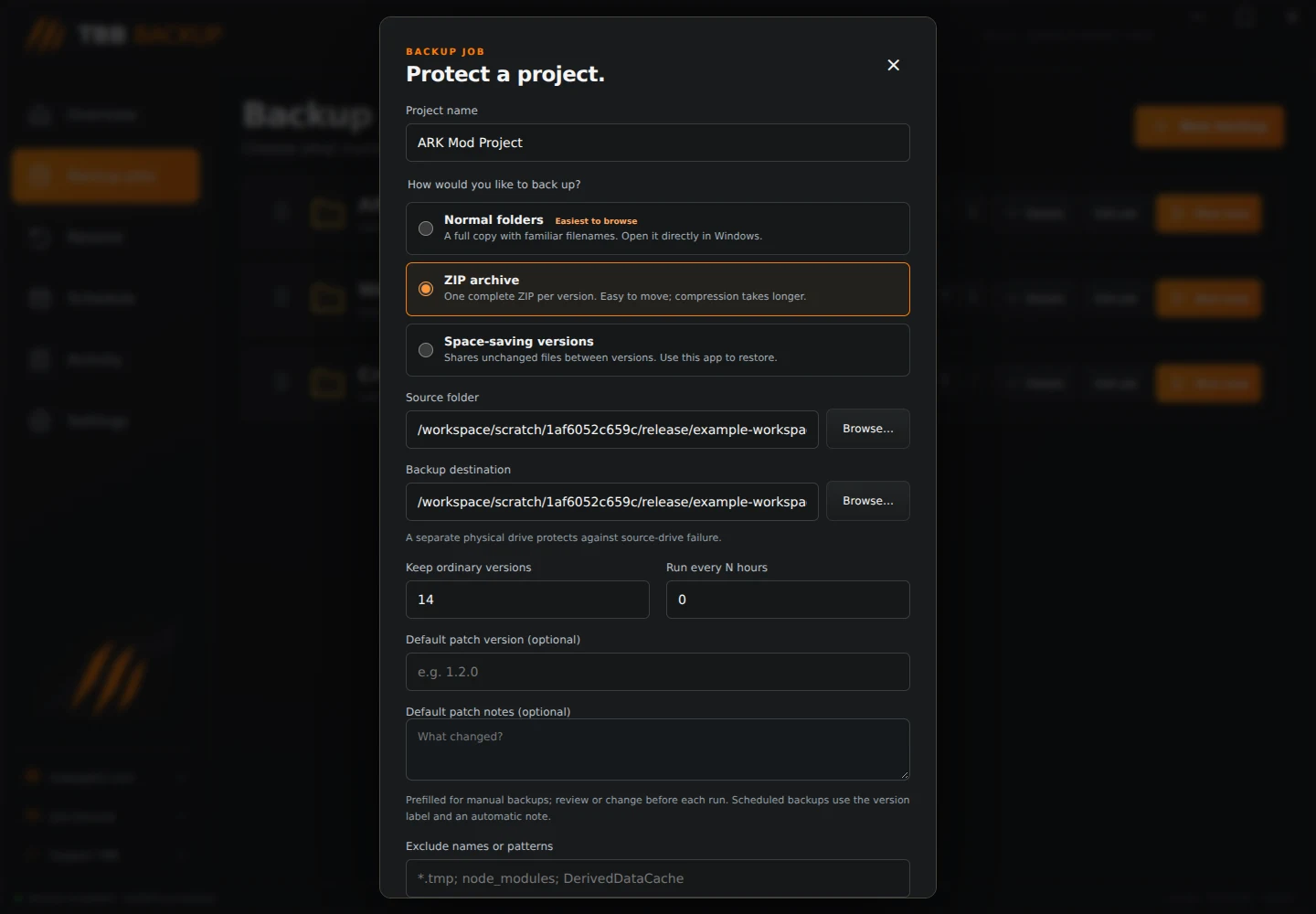
3. Create a backup job 1. Select Backup Jobs, then New backup. 2. Enter a project name you will recognise. 3. Choose Normal folders, ZIP archive or Space-saving versions. Normal folders is the easiest starting point; ZIP creates one complete archive for each run. 4. Use Browse to choose the source folder and a separate backup destination. They must not overlap. 5. Set Keep ordinary versions to the number of versions you want to browse. For example, 14 keeps the most recent 14 unpinned version indexes. Setting this to 1 intentionally leaves only one ordinary version in Restore. 6. Set Run every N hours to 0 for manual backups. Automatic schedules work only while the app stays open. 7. Optionally enter a default patch version and multiline notes. 8. Enter exclusions if needed, separated by semicolons, then Save backup job.
Step illustration
Step illustration
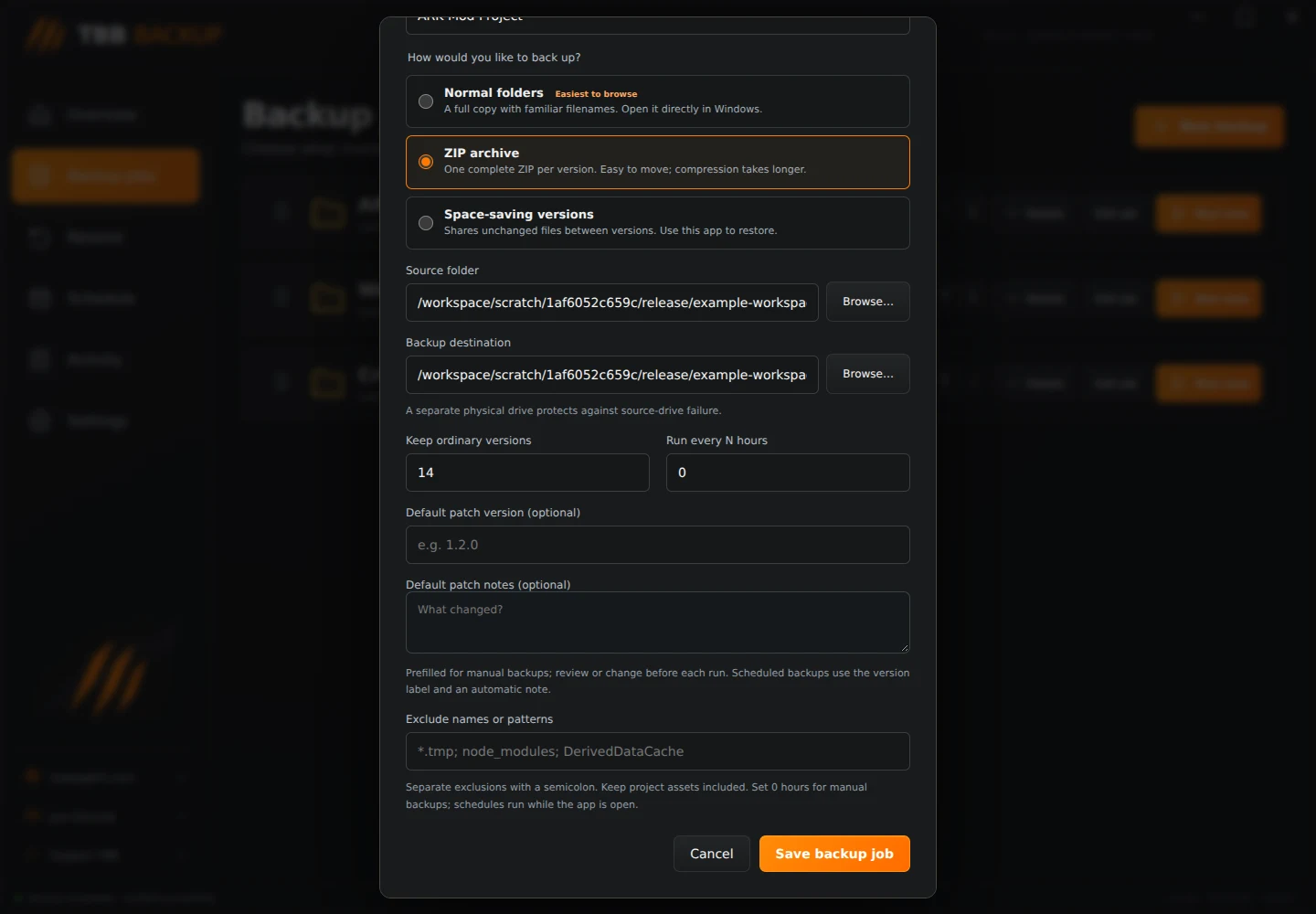
Exclude temporary data cautiously. Do not exclude your real project assets. Existing job source and destination fields are fixed to preserve their link to the version history; create another job to use different folders.
4. Run the backup Select Run now on the job. Review the optional patch version and notes, then choose Back up now. Leave the app open until it reports completion. Check Activity if anything failed.
A successful run checks saved contents with SHA-256. Backing up the same unchanged project twice creates two versions, unless retention is set to one.
5. Test a restore Open Restore, select your project and a backup date, tick a test file and choose Restore selected. Pick an existing recovery destination outside the source and backup repository. The app creates a new recovery folder.
Open the recovered file and check its contents. Complete this small test before relying on a new backup setup.
Choose a backup method · Restore files and manage versions · Schedules, organisation and troubleshooting